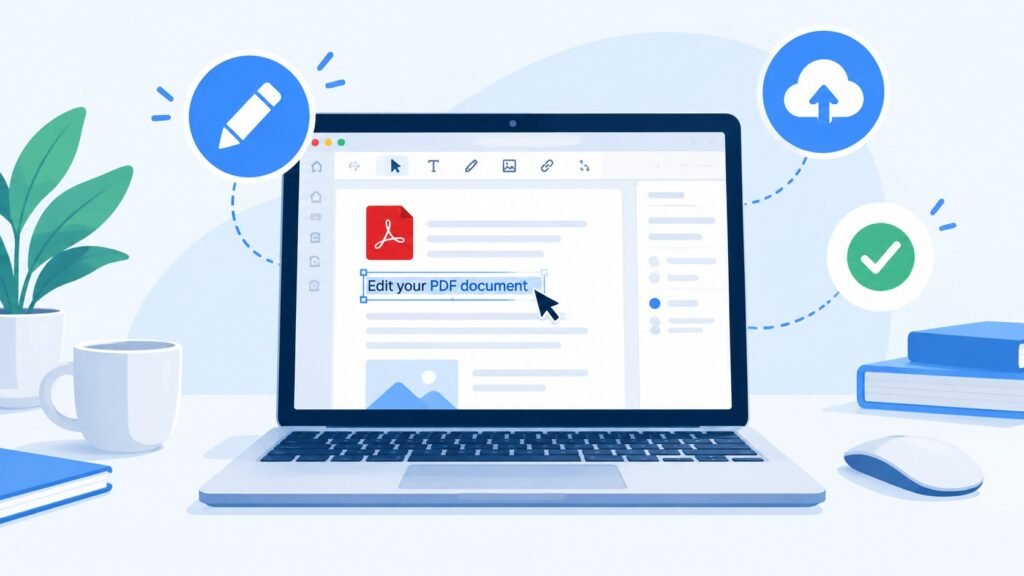

You just got a PDF from your professor, your boss, or a client. And of course, you need to change something in it. Maybe it’s a typo. Maybe it’s a whole paragraph. Maybe it’s just your signature.
Then reality hits: PDFs aren’t supposed to be easy to edit. That’s kind of the whole point of the format.
But here’s the good news. You don’t need to be a tech expert to fix this. Whether you’re a student tweaking a research paper, a professional updating a contract, or just someone who accidentally typed the wrong date on a form, there’s a simple way to edit a PDF document. Several, actually.
This guide walks you through all of them, free and paid, online and offline, so you can pick what actually fits your situation.
Why Editing a PDF Feels So Hard (But Isn’t)
PDF stands for Portable Document Format. It was built to look the same on every device, every time. That’s great for sharing. It’s not so great when you need to change a single word.
Unlike a Word document, a PDF doesn’t store text in neat, editable boxes. It stores it more like a printed page. So when you try to “edit” it, you’re really asking software to recognize the text, let you change it, and then rebuild the page around your edit.
That’s why you need the right tool. The good news? There are now more free and easy options than ever.
Method 1: Edit a PDF Online (No Software Download Needed)
If you just need a quick fix and don’t want to install anything, online PDF editors are your fastest option. This is one of the most popular ways people search for how to edit a PDF document, and for good reason. It works from any browser, on any device.
Here’s the general process, which works across most online tools:
- Go to the PDF editor’s website.
- Upload your PDF file (drag and drop usually works too).
- Use the toolbar to add or change text, insert images, or add comments.
- Click “Export” or “Download” to save your edited file.
A few solid free options worth trying:
- iLovePDF – Simple interface, good for quick text edits and annotations.
- Smallpdf – Clean design, though direct text editing usually needs a paid plan after a short free trial.
- Adobe Acrobat Online – Reliable and widely trusted, but full editing features often require a free Adobe account or subscription.
- Canva’s PDF Editor – A good pick if you also want to redesign the PDF, not just fix text.
Real example: Say you’re a student and your professor sent feedback on your assignment PDF, but one paragraph has a typo you need to fix before resubmitting. Instead of retyping the whole document, you can upload it to iLovePDF, click on the exact line, correct it, and download the fixed version in under two minutes.
Quick tip: Online tools are great for occasional, small edits. If you’re editing PDFs every week, a desktop tool will save you more time in the long run.
Method 2: Edit a PDF Using Built-In Tools on Your Computer (Completely Free)
Here’s something most guides don’t tell you: you might not need any extra software at all.
- On a Mac: Preview, Apple’s default PDF viewer, lets you add text, sign documents, highlight, and even rearrange pages. Just open your PDF, click the markup toolbar icon, and start editing. It won’t let you change existing paragraph text easily, but for adding notes, signatures, or simple markups, it’s more than enough.
- On Windows: Microsoft Edge has a built-in PDF reader with basic markup and text-adding tools. Just right-click your PDF, open it in Edge, and use the toolbar at the top. It’s not made for heavy editing, but it handles small changes fine.
This is a genuinely underrated method. If your edit is small (adding a note, signing a form, highlighting a section) you can skip downloading anything at all.
Method 3: Use Dedicated PDF Editing Software (For Regular or Detailed Edits)
If you’re editing PDFs often, or the edits are more complex (changing whole paragraphs, adjusting layouts, fixing fonts) desktop software is worth the investment.
Adobe Acrobat is the industry standard here. It lets you:
- Edit existing text and fonts directly
- Add, resize, or move images
- Reorganize or delete pages
- Run spellcheck and use find-and-replace across the document
Foxit PDF Editor is a strong, often cheaper alternative. It has a similar layout to Microsoft Word, so the learning curve is short if you’re already comfortable with Office tools.
Both usually offer a free trial before you commit to a subscription, so you can test which one fits your workflow before paying.
Method 4: What to Do With a Scanned PDF (This Trips Most People Up)
Here’s a scenario almost no one covers clearly: what if your PDF isn’t actual text at all, but a scanned image of a document?
If you try to click and edit text on a scanned PDF, nothing happens. That’s because there’s no real text there, just a picture of text. To fix this, you need OCR (Optical Character Recognition), which converts the image into actual editable text.
Here’s how to handle it:
- Use a tool with built-in OCR, such as Adobe Acrobat or Foxit’s OCR feature.
- Upload your scanned PDF.
- Run the OCR tool. This scans the image and recognizes the letters and words.
- Once converted, you can edit the text normally.
Real example: A professional receives a signed contract that was scanned from paper. They need to update one clause before sending it back. Instead of retyping the entire document, they run it through Acrobat’s OCR feature, which turns the scan into editable text in under a minute, then simply updates that one clause.
Without OCR, editing a scanned PDF is basically impossible. With it, it takes minutes.
Free vs. Paid: Which One Do You Actually Need?
Most articles online push you straight to a paid subscription. Here’s a more honest comparison:
Your Situation | Best Option |
| One-time small edit (fix a typo, add a note) | Free online tool or your device’s built-in viewer |
| Regular light editing (a few times a month) | Free tier of iLovePDF or Adobe Acrobat Online |
| Frequent, detailed editing (work-related) | Paid Adobe Acrobat or Foxit subscription |
| Scanned documents that need text recognition | Adobe Acrobat or Foxit (OCR feature, often needs a paid plan) |
| Redesigning a PDF, not just editing text | Canva |
If you’re a student or someone editing PDFs occasionally, you likely don’t need to pay anything. Save the paid tools for when editing PDFs becomes part of your regular routine.
Frequently Asked Questions
Can I edit a PDF for free?
Yes. Tools like iLovePDF, Canva, and your device’s built-in viewer (Preview on Mac, Edge on Windows) let you make basic edits without paying anything.
Is it safe to edit a PDF online?
Generally, yes, as long as you use a reputable tool. Look for sites that mention encryption or data protection standards, and avoid uploading sensitive documents (like ID cards or financial records) to unfamiliar websites.
Can I edit a scanned PDF?
Not directly. You’ll need a tool with OCR (Optical Character Recognition) to convert the scanned image into editable text first.
What’s the easiest way to edit a PDF on a Mac without downloading anything?
Use Preview, which comes built into every Mac. It handles text boxes, highlights, and signatures well.
Do I need Adobe Acrobat to edit a PDF?
No. Acrobat is powerful but not required for most everyday edits. Free tools and built-in device viewers cover the majority of common use cases.
Final Takeaway
How to Edit a PDF Document doesn’t have to mean buying expensive software or wrestling with confusing tools. For a quick fix, your device’s built-in viewer or a free online tool will usually do the job. For scanned documents, OCR is the missing piece most people don’t know about. And if editing PDFs becomes a regular part of your work, investing in Adobe Acrobat or Foxit will save you time down the line.
Pick the method that matches how often you actually need to edit PDFs, not the one that happens to be advertised the loudest. That’s really all there is to it.